 Great
Great  238 reviews
 How to update drivers on Windows PC?
Slow PC performance, flickering display, unstable internet, sound not working and other hardware errors are usually caused by outdated drivers. Therefore, it is important to update them from time to time. Try Advanced Driver Updater and update all your drivers automatically in a single click!
For Windows 11, 10, 8.1, 8 & 7
60 Days Money Back Guarantee
Why do you need to update outdated drivers?
To achieve peak performance on Windows systems, it’s necessary to have the right device drivers. Most drivers are installed along with the operating system. However, with time they get outdated, resulting in poor system performance and limited hardware functionality. Therefore, it is very important to update the drivers on your system regularly.
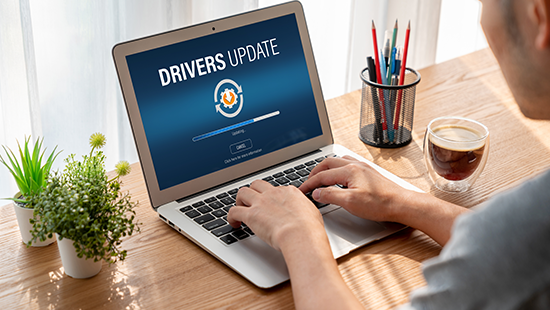
To do so manually is a tedious task. You first have to determine the model and make of the hardware device, go to the manufacturer’s website, then download and install the most recent and updated drivers for it. Most of the times, you will have problems finding the right driver for your computer, or the one you install may be incompatible.
How to update drivers automatically?
Using Advanced Driver Updater, drivers can be updated easily, quickly and efficiently. This Windows driver updater has an extensive database which consists of the latest and most updated drivers in the market. It scans your system and displays a list of outdated drivers. To update to the most recent device drivers on PC, all you need to do is click a button.
Simply download Advanced Driver Updater by clicking on the 'Free Download' button and follow the steps below:
For Windows 11, 10, 8.1, 8 & 7
60 Days Money Back Guarantee
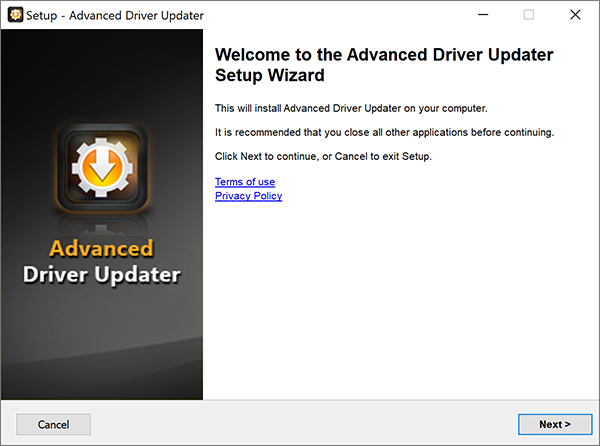
Step 1 - Download & install Advanced Driver Updater
Once you've downloaded the setup file, double-click on it to run the installer and follow on-screen instructions to complete installation of Advanced Driver Updater.
Step 2 - Scan your PC for outdated drivers
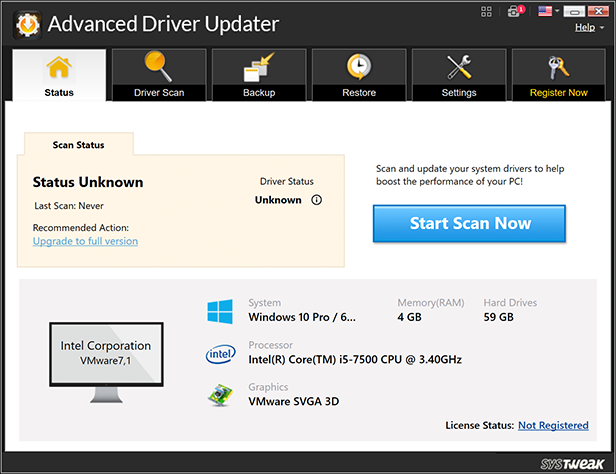
After installation is complete, Advanced Driver Updater will run a driver scan automatically. Alternatively, you can manually launch Advanced Driver Updater and click on "Start Scan Now" button to start scanning your computer for outdated, faulty and missing drivers.
Step 3 - Review scan results
Once the driver scan is complete, a list of oudated and up-to-date drivers will be shown in the scan results. To see additional information about the drivers, click the info icon next to the driver status.
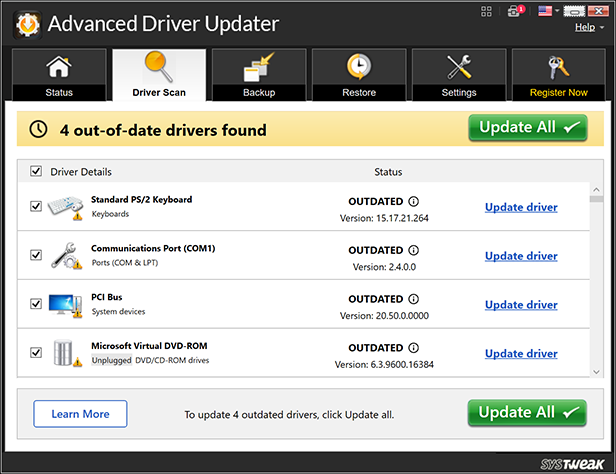
Step 4 - Install the latest drivers
Now that you know which drivers are outdated, you can update them individually by clicking the "Update Driver" button next to each driver or click the "Update All" button to update all outdated drivers with a single click.
Before updating the drivers, Advanced Driver Updater will take a backup of old drivers and will also create a system restore point for extra protection.
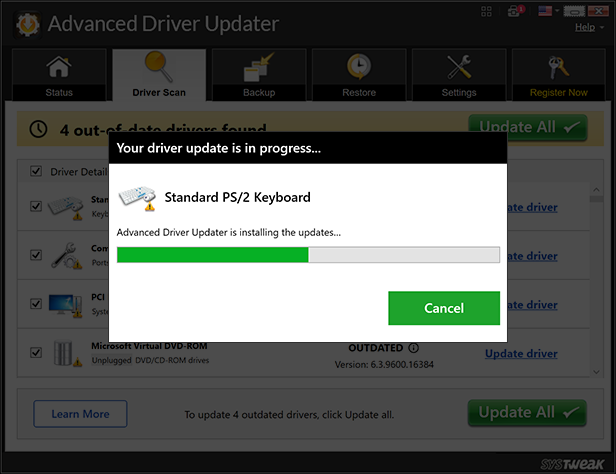
After that, the latest drivers are downloaded and installed. Once all the drivers are updated, you can enjoy a faster, optimized PC with the latest driver updates.
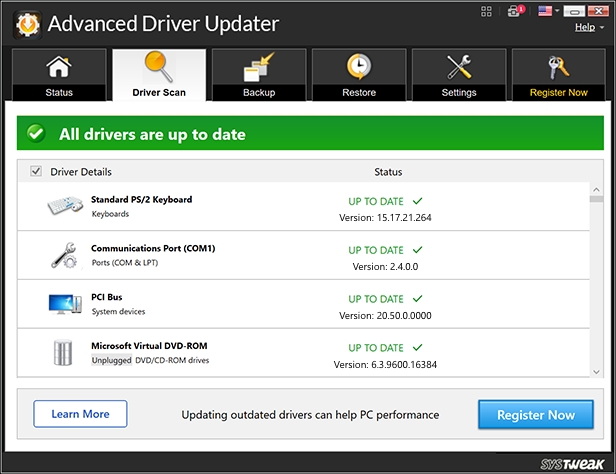
Don’t waste hours of your time updating drivers one by one manually. It is not only time consuming but also adds up to your frustration.
Get the registered version of Advanced Driver Updater and update all your drivers automatically in a single click! Experience the full benefits of your devices easily and quickly.
For Windows 11, 10, 8.1, 8 & 7
60 Days Money Back Guarantee